How to Use the BTZO Affiliate Dashboard
1. Feature Overview
The Affiliate Dashboard allows affiliates to monitor referrals, manage rebate settings, track performance, view commissions, and manage referral links from one central location.
This dashboard provides full visibility into:
-
Your referred users
-
Partner hierarchy
-
Rebate and commission settings
-
Trading performance and earnings
-
Campaign tracking via referral links
2. When to Use It
Use the Affiliate Dashboard when you want to:
-
Monitor overall affiliate performance
-
Manage user rebates and partner levels
-
Track commissions and referral activity
-
Create and manage referral links
-
Review trading and deposit activity of referrals
3. Affiliate Dashboard Overview (Main Page)
After logging in and navigating to Promotions → Affiliate Program, the Affiliate Dashboard shows a summary of your overall affiliate activity.
You can view:
-
Total commissions earned (USDT)
-
Total users referred
-
Trading commission rates (Spot and Futures)
-
AutoTrader commission rates (Maker and Taker)
-
Your referral link and referral code
-
Recent referrals and their activity
-
Earnings overview and charts
This section gives you a high-level snapshot of your affiliate account.
4. User List (Referred Users)
The User List section shows all users referred by you or your downstream partners.
What You Can View
For each user, you can see:
-
User UID
-
Referral code used
-
Spot self rebate (%)
-
Futures self rebate (%)
-
Upline partner
-
Registration time
-
First trading time
-
KYC verification status
You can switch between:
-
Trading
-
AutoTrader
using the tabs at the top.
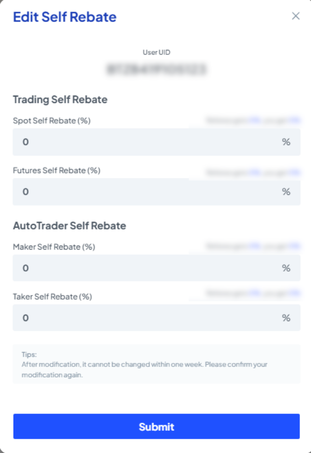
Editing Rebate Percentage
You can manually adjust rebate percentages for a user.
To edit rebate percentages:
-
Locate the user in the User List
-
Click the pen (edit) icon on the right side of the row
Update rebate percentages for:
-
Spot trading
-
Futures trading
-
AutoTrader (Maker and Taker)
-
-
Click Submit
Note: After modification, rebate settings cannot be changed again within one week.
Upgrading a User to Partner
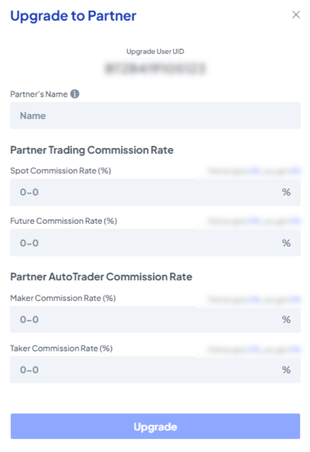
You can upgrade a referred user to a Partner.
To upgrade a user:
-
Locate the user in the User List
Click the profile icon next to the user
-
Enter partner details and commission rates
-
Click Upgrade
5. Partner List
The Partner List shows all partners under your affiliate structure.
What You Can Do
-
View partner UID, name, and level
-
Check upline partner relationships
-
See number of referees and downline partners
-
View Spot and Futures commission rates
-
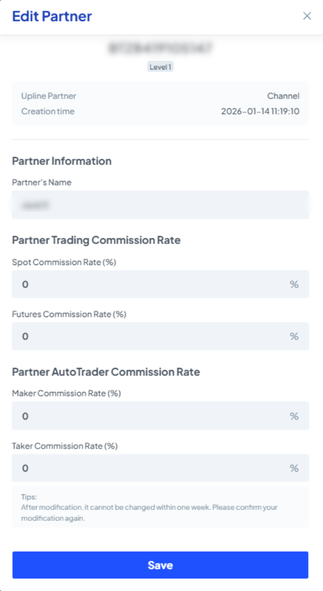
Edit partner details at any time
To edit a partner:
-
Click the pen (edit) icon on the right side of the partner row
6. Performance Tracking
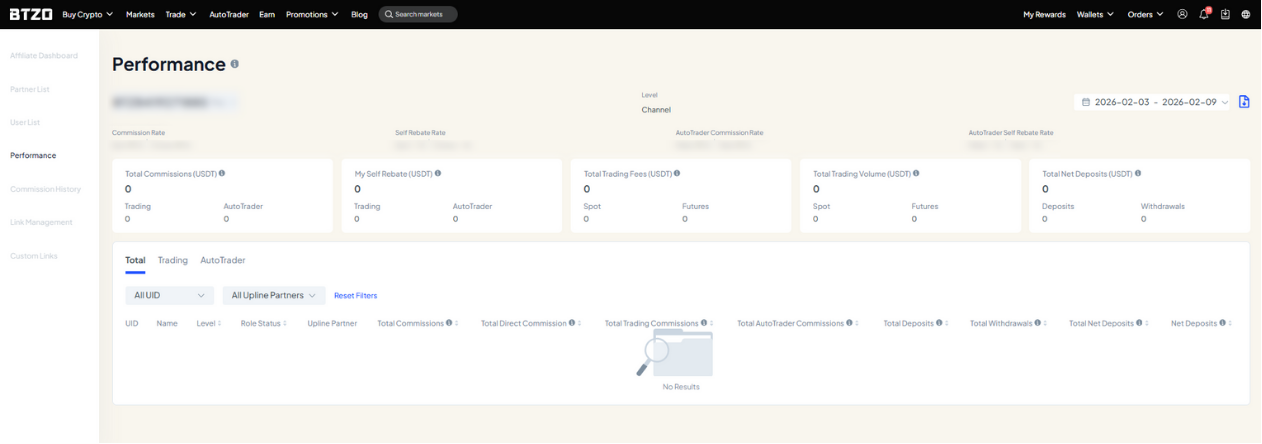
The Performance section allows you to track:
-
Your own performance
-
Individual partner performance
Metrics Available
You can view:
-
Total commissions
-
Self rebate amounts
-
Total trading fees
-
Trading volume (Spot and Futures)
-
Total deposits and withdrawals
-
Net deposits
Filters allow you to:
-
Select a specific partner
-
Adjust date ranges
-
View Trading or AutoTrader data separately
7. Commission History
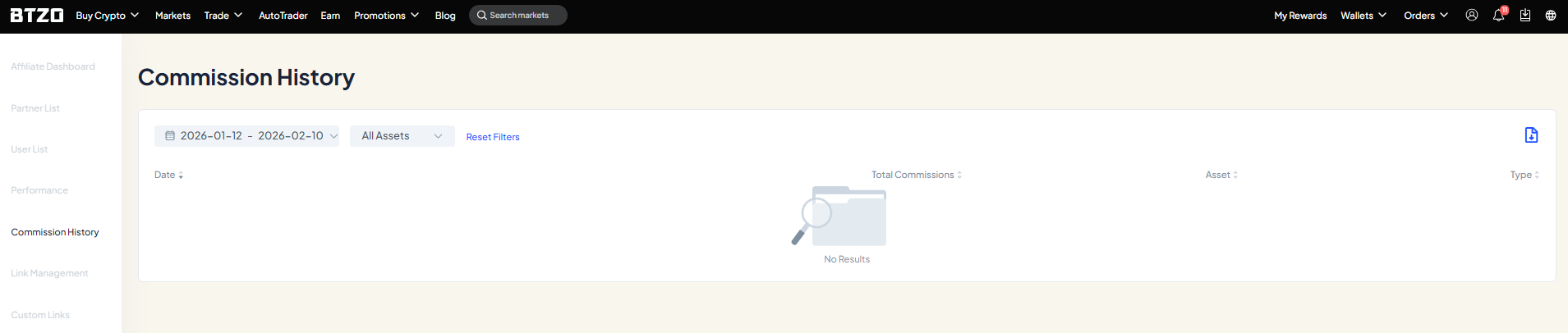
The Commission History section displays all commissions you have received.
You can:
-
Filter by date range
-
Filter by asset
-
View commission amounts credited to your account
This section helps you track historical rebate payouts.
8. Link Management
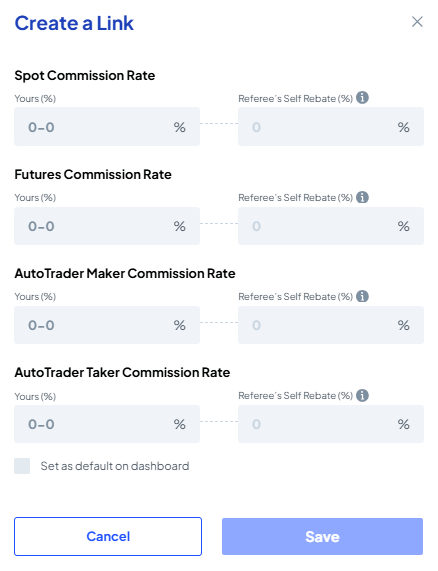
The Link Management section allows you to manage referral links for different campaigns.
Key Features
-
You can create up to 10 referral links
-
Each link can have different commission and rebate settings
-
Links help you track performance across different campaigns or channels
To create a new link:
-
Click Create New
-
Set commission and rebate percentages
-
Save the link
You can also set any link as your default link.
9. Custom Links
The Custom Links feature allows you to customize referral URLs for easier sharing.
How It Works
-
The first field shows the original referral link
-
The second field allows you to create a custom version of that link
-
Custom links are mapped to your existing referral codes
This helps improve usability and branding when sharing links.
10. Expected Result
By using the Affiliate Dashboard, you can:
-
Manage users and partners efficiently
-
Control rebate and commission settings
-
Track performance and earnings accurately
-
Optimize campaigns using multiple referral links
11. Notes / Best Practices
-
Review rebate settings carefully before submitting changes
-
Use multiple links to track different campaigns
-
Monitor partner performance regularly
-
Use the Performance section to identify high-performing partners
🌐 Website | 🐦 Twitter (X) | 📢 Telegram Announcements | 💬 Telegram Chat | 💻 Discord | 📸 Instagram | ▶️ YouTube
Related Articles
How to Apply for the BTZO Affiliate Program
1. Feature Overview The BTZO Affiliate Program allows eligible users to earn commissions by referring new users to BTZO. Affiliates can track performance through an affiliate dashboard and manage referral links after approval. 2. When to Use It Use ...How BTZO Cash Can Be Utilized
1. Feature Overview BTZO Cash is a reward balance that provides trading fee rebates, not withdrawable funds. It is issued through the BTZO Rewards Hub and is used to rebate eligible trading fees based on predefined rules. BTZO Cash is benchmarked 1:1 ...How to Register on the BTZO App
1. Feature Overview Account registration allows users to create a BTZO account using their email address. A registered account is required to access trading features, rewards, and account services on the BTZO App. 2. When to Use It Use this process ...How to Register a BTZO Account
How to Register a BTZO Account Register for an account with BTZO today to enjoy the perks of trading on your favorite crypto exchange. You can choose to register using your email address (Step 2a.), or Google/ Apple account (Step 2b.) . Note: ...BTZO Social Media Campaigns – Terms & Conditions
1. Campaign Scope & Platform 1.1These are Telegram-based campaigns. Only activities recorded within the official BTZO Telegram community will be considered. 2. Eligibility 2.1 Participation is open only to users who: > Are registered on BTZO, and ...